

Make Donna the
default editor
for your files
Make Donna the default editor for your files
Donna opens your .docx files and your .pdf files seamlessly.
Make it the default editor by following the instructions below
Windows
macOS
METHOD A
Through File Explorer
The quickest way, works on any version of Windows.
01
STEP 1
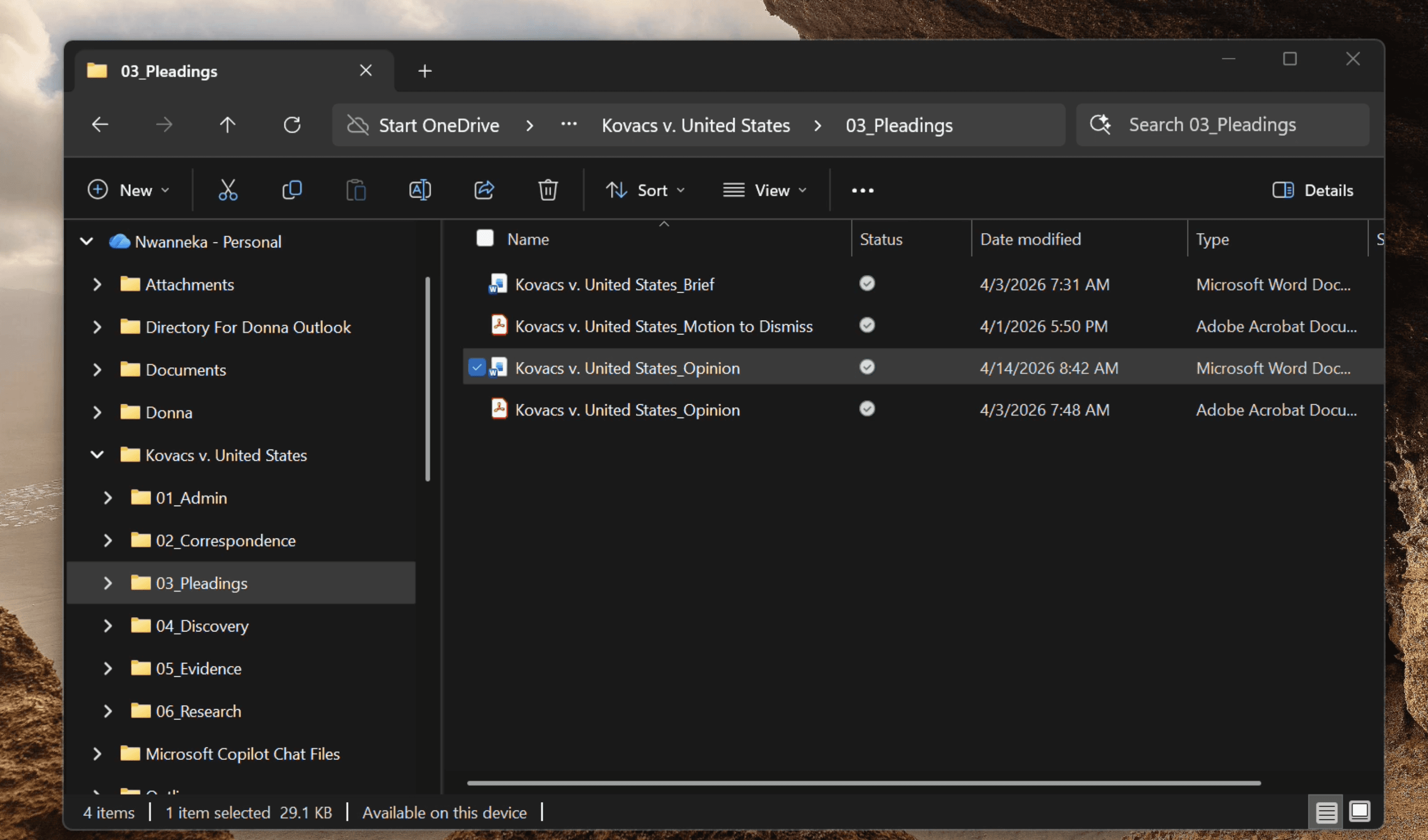
Right-click any .docx or .pdf file in File Explorer.
STEP 2
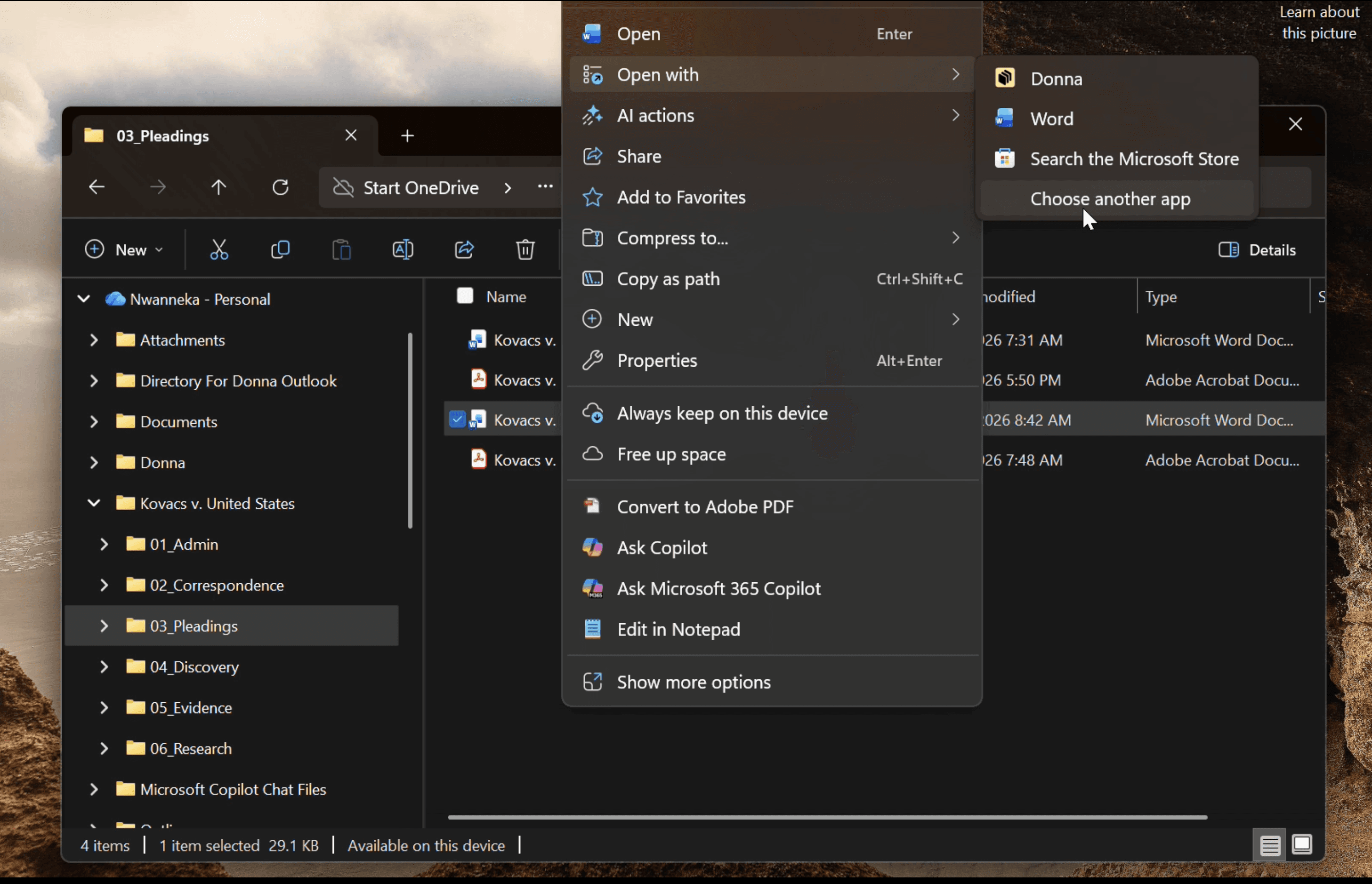
Hover over Open with and select Choose another app.
02
03
STEP 3
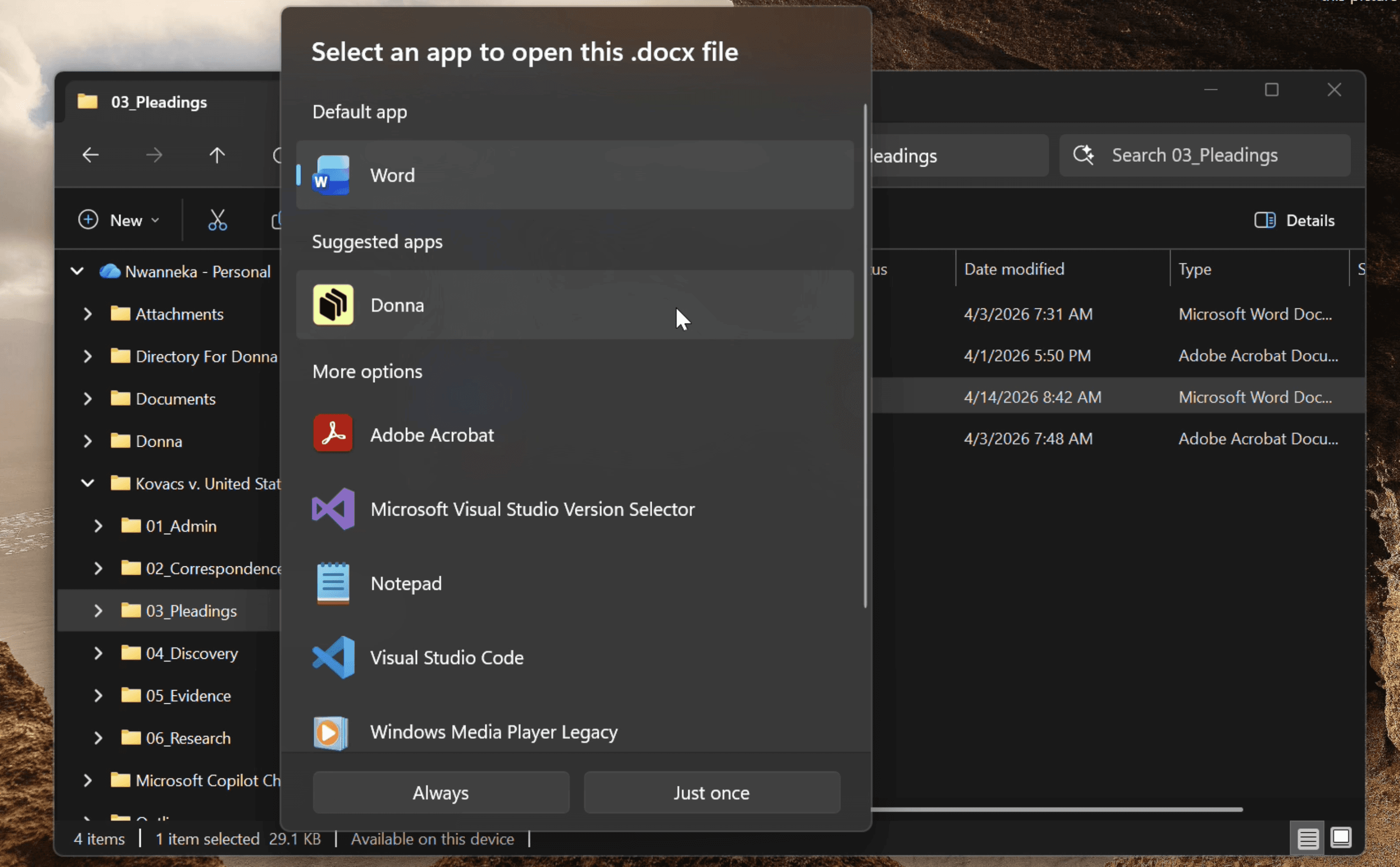
Scroll in your applications until you find Donna. Check Always.
STEP 4
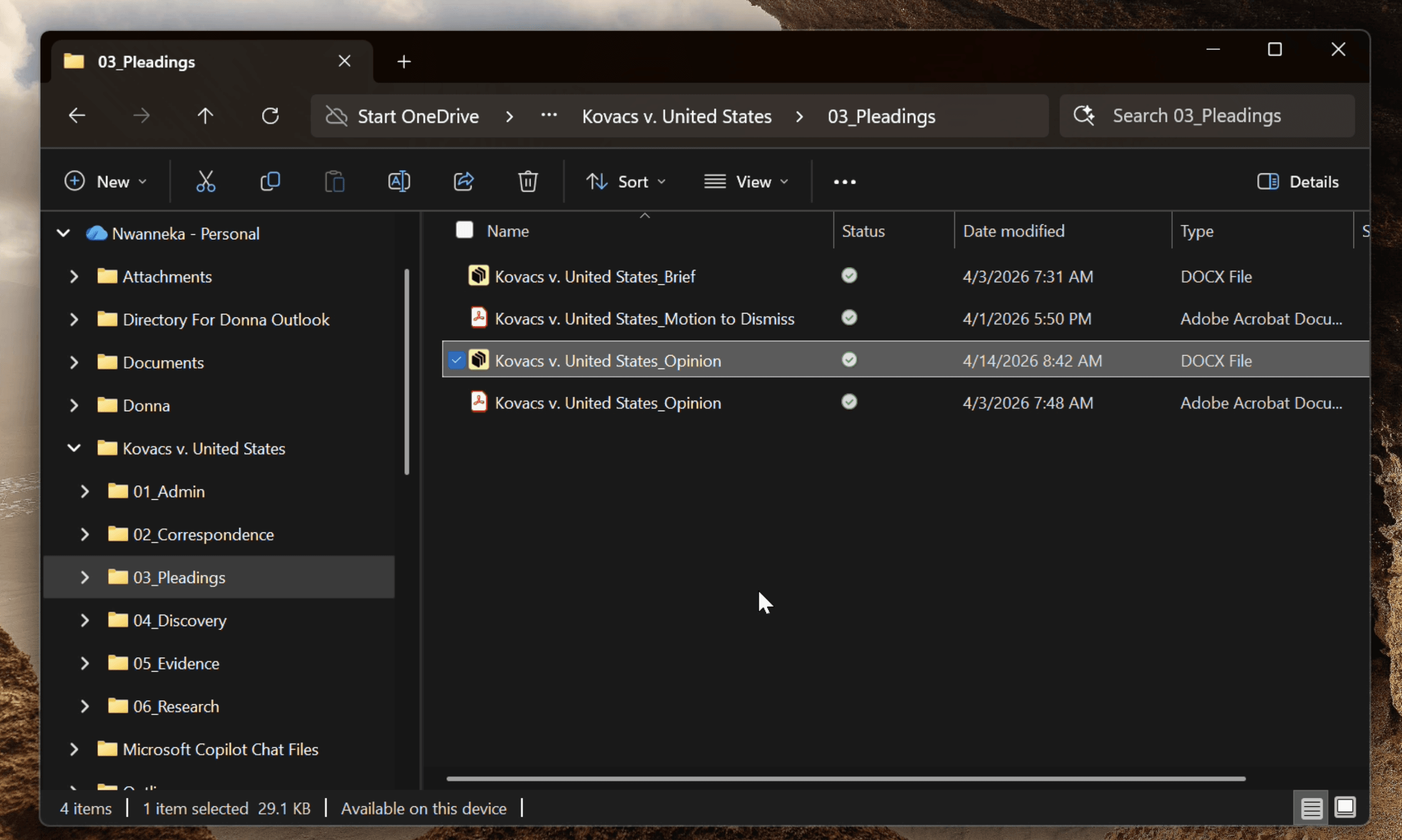
All done!
04
METHOD B
Through Settings (Windows 10 and 11)
Prefer going through system settings? This works for both Windows 10 and 11.
01
STEP 1
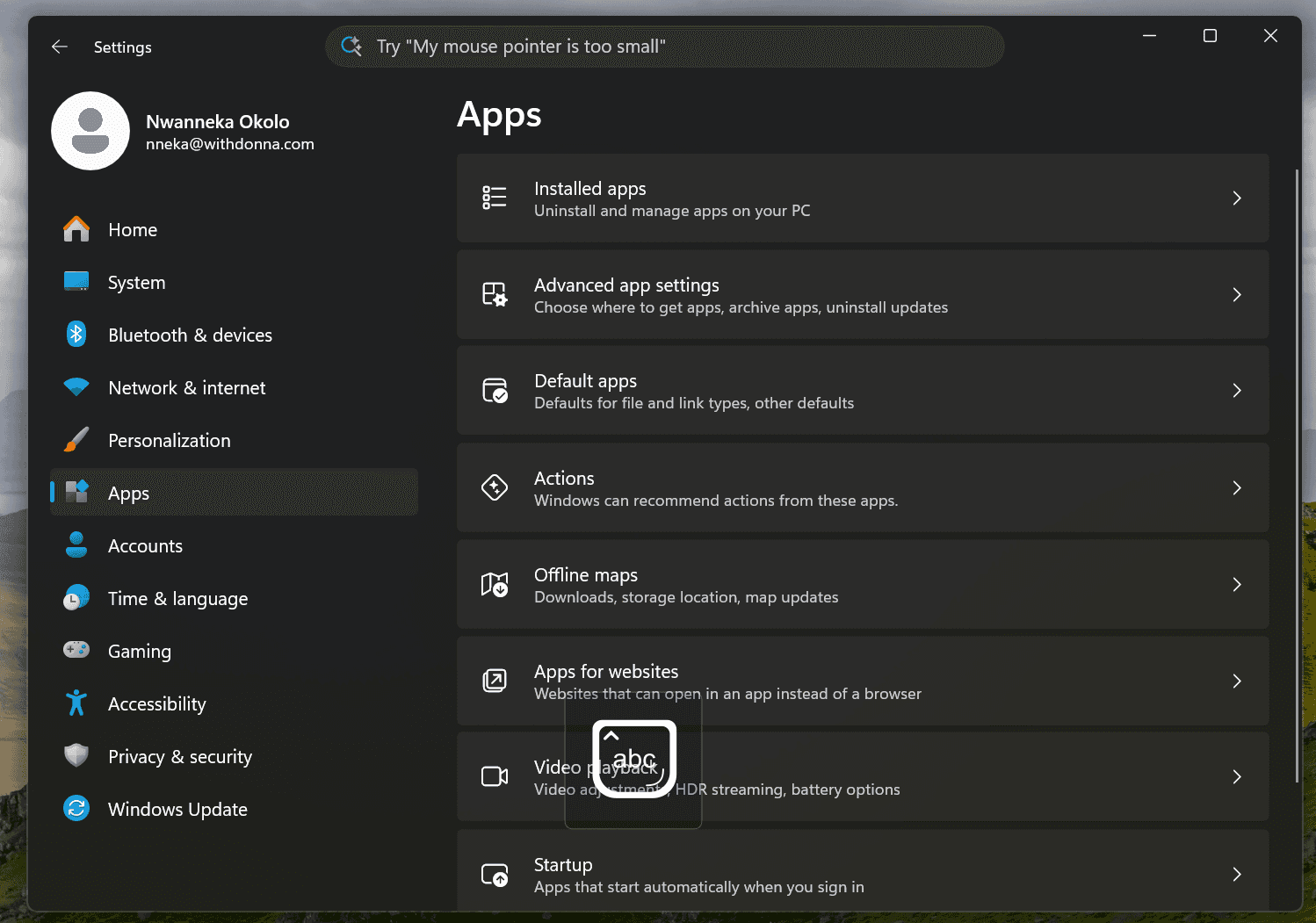
Open Settings (press Windows key + I). Go to Apps → Default apps.
STEP 2
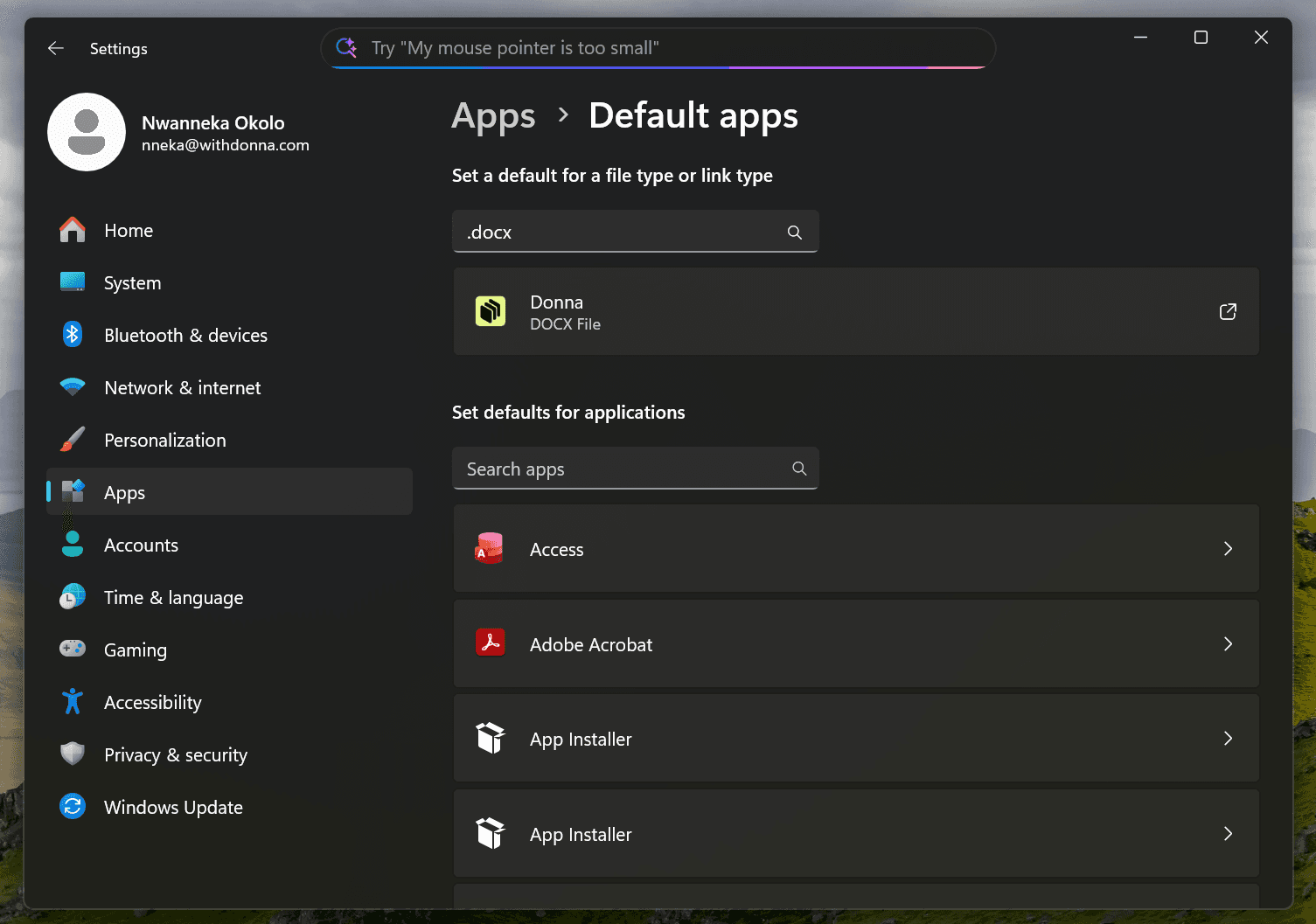
In the search box, type the file extension, such as .docx or .pdf. Click the current default program shown beneath the file type.
02
03
STEP 3
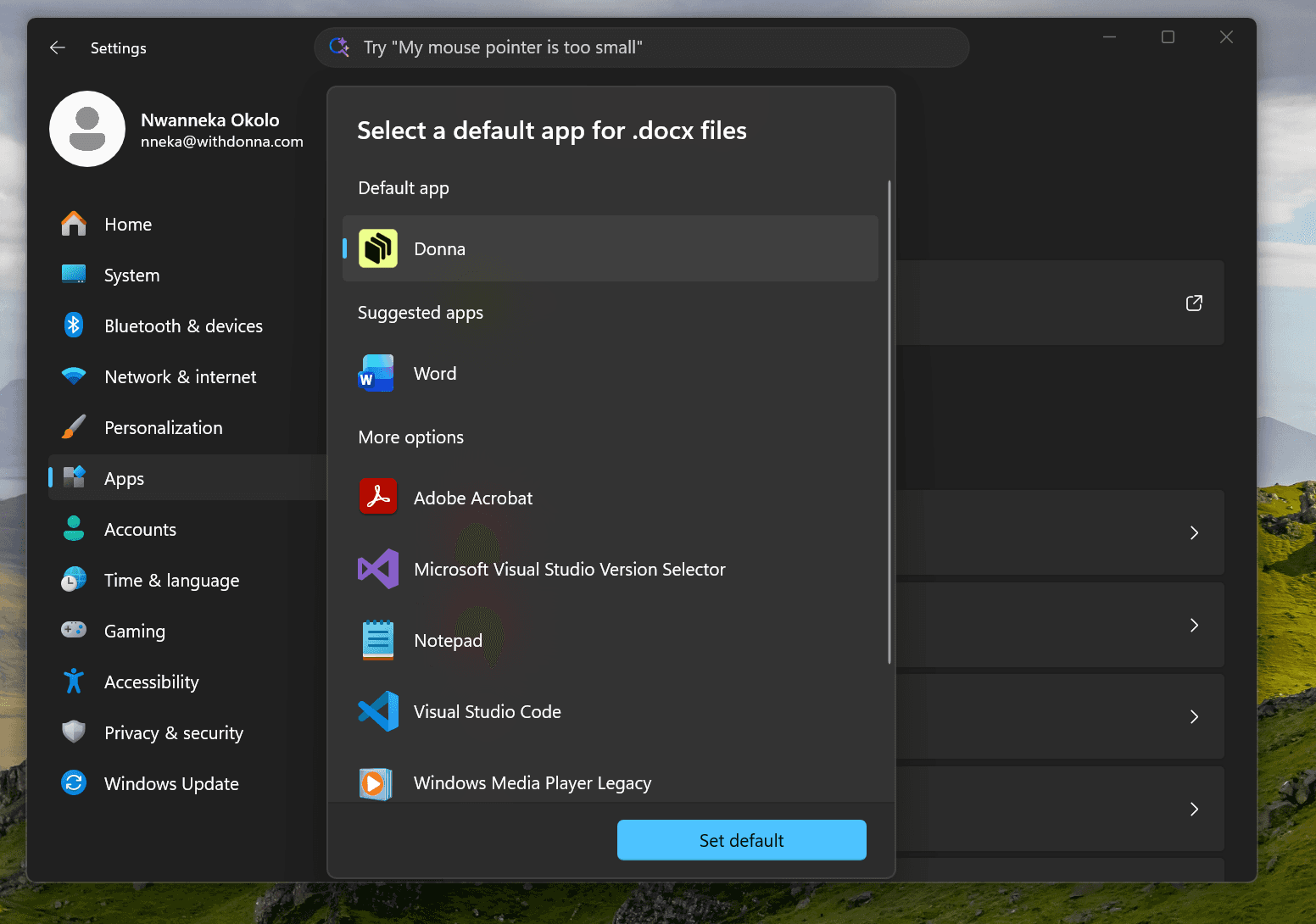
Choose your preferred program from the list and click Set default.
METHOD A
Through File Explorer
The quickest way, works on any version of Windows.
01
STEP 1
Right-click any .docx or .pdf file in File Explorer.
STEP 2
Hover over Open with and select Choose another app.
02
03
STEP 3
Scroll in your applications until you find Donna. Check Always.
STEP 4
All done!
04
METHOD B
Through Settings (Windows 10 and 11)
Prefer going through system settings? This works for both Windows 10 and 11.
01
STEP 1
Open Settings (press Windows key + I). Go to Apps → Default apps.
STEP 2
In the search box, type the file extension, such as .docx or .pdf. Click the current default program shown beneath the file type.
02
03
STEP 3
Choose your preferred program from the list and click Set default.
Windows
macOS
METHOD A
Through File Explorer
The quickest way, works on any version of Windows.
01
STEP 1
Right-click any .docx or .pdf file in File Explorer.
STEP 2
Hover over Open with and select Choose another app.
02
03
STEP 3
Scroll in your applications until you find Donna. Check Always.
STEP 4
All done!
04
METHOD B
Through Settings (Windows 10 and 11)
Prefer going through system settings? This works for both Windows 10 and 11.
01
STEP 1
Open Settings (press Windows key + I). Go to Apps → Default apps.
STEP 2
In the search box, type the file extension, such as .docx or .pdf. Click the current default program shown beneath the file type.
02
03
STEP 3
Choose your preferred program from the list and click Set default.
Windows
macOS
Windows
macOS
METHOD A
Through File Explorer
The quickest way, works on any version of Windows.
01
STEP 1
Right-click any .docx or .pdf file in File Explorer.
STEP 2
Hover over Open with and select Choose another app.
02
03
STEP 3
Scroll in your applications until you find Donna. Check Always.
STEP 4
All done!
04
METHOD B
Through Settings (Windows 10 and 11)
Prefer going through system settings? This works for both Windows 10 and 11.
01
STEP 1
Open Settings (press Windows key + I). Go to Apps → Default apps.
STEP 2
In the search box, type the file extension, such as .docx or .pdf. Click the current default program shown beneath the file type.
02
03
STEP 3
Choose your preferred program from the list and click Set default.
Stay in the Loop
Stay in the Loop
Your entire project. One screen. No excuses.
Just a superior interface for the files everyone else is still struggling to view on their laptops and phones. Leave your email and we'll be in touch.
All rights reserved @ 2026